Category: Math

4th Grade Graphing Virginia Resources

Fourth graders at Laburnum Elementary have been learning about graphing in Math (SOL4.14) and Virginia natural resources in Science (SOL4.9), so today students in Ms. Waltz’s class researched and graphed Virginia products. First I shared two websites for research: Virginia Farm Products & Virginia Minerals. These sites provide the amount in dollars or tons for each resource. We discussed why the units were different (it wouldn’t make sense to compare farm products in tons because of their different sizes: cows weigh a lot more than chickens). Next we opened a Google spreadsheet and wrote “Product” in Column A and “Amount in (tons or dollars)” in Column B. They had to choose the unit that corresponded with their products. Then they typed three products of their choice in Column A and entered the amount of each in Column B. Now that they had entered their data, it was time to graph it. Google Sheets has a new “Explore” feature that can be accessed by clicking the star shaped icon in the bottom right corner. They chose a color scheme from the pop up menu and added the graph to their spreadsheet. I also showed them how to change the color of the bars (click on a bar and choose a color from the side menu). Finally we shared our spreadsheets on Schoology so we could learn from each other. Click here to see all their graphs (UPDATE: I did the same lesson with Ms. Dowling’s class on 9/27, so those have been added as well).


2nd Grade Ordinal Numbers

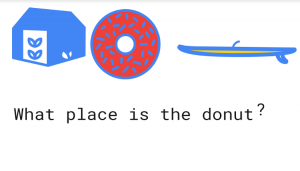
Second graders at Trevvett Elementary have been learning about ordinal numbers (SOL2.2), so today students in Ms. Smith’s class created ordinal number questions for their classmates to solve. First, we used to Google’s Autodraw to draw a series of objects. AutoDraw can guess what you are drawing and offer suggestions. For example, if you draw a rough circle, it will provide a perfect circle to replace it with, or it may suggest an orange, a ball, or a wheel. So it’s a great way for students to practice their drawing skills without worrying about being perfect. I explained that their series of objects needed to be in one straight line so their classmates could tell the ordinal positions correctly. Then we used the text tool to type a question. They could either give the position of an object and ask for its identity (“What is in the 3rd place?“) or they could name the object and ask for its position (“In what place is the apple?”). When they finished, the students downloaded their images and shared them in an album on Schoology. Now they can answer each other’s questions in the comments or Ms. Smith can present them on the projector for a review. You can see them all here (and here’s a link to Mr. Gunter’s class at Holladay, who did the same project).


5th Grade Review with Chatbots

Fifth graders at Holladay Elementary have been reviewing for exams, so today students in Ms. Neal’s class created review questions for each other in the form of a chatbot. A chatbot is an online virtual assistant that you’ve probably already had interactions with if you’ve used the chat feature on a business website. The chatbot is programmed to ask you questions and give replies based on your answers. We used a website called Fobi.io which turns any Google form into a cool-looking chatbot. First we created the Google Form by going to our Google drive and choosing New > More > Google Forms. I explained that the first question should be: “What is your name?” Then the students had to come up with two multiple choice educational questions about any topic they’ve learned about this year in 5th grade (we brainstormed a list of topics, in case they had trouble remembering). They could also create additional questions of their own if they had time. We published our forms by clicking the “Send” button and copied the link. Next we went to Fobi.io and pasted the link to our form. Now we could program the chatbot Fobio to reply to each of the questions. For example, if an answer was correct, he could say, “Great job!” or if it was wrong, he could say, “Try again!” The students were very creative in their responses. You can take a look at some of their chatbots here.


2nd Grade Time Movies

Second graders at Holladay Elementary have been learning how to tell time to the nearest five minutes (SOL2.12), and today students in Ms. Brown’s class created videos about time using WeVideo. WeVideo is bandwidth intensive, so in order to reduce the number of computers accessing the website, the students worked in pairs. First, we signed into WeVideo with our Google accounts. I showed them how to create the title page and pick a theme. Since the theme music is usually too loud, we turned the volume down to 50% (at the bottom). Next we used the record button to record our introductions with the built-in webcam. For the content, I instructed the students to find images of clocks showing a specific time (they did a Google image search for “8:30,” for example). They also searched for pictures showing an activity they would be doing at that time (eating, sleeping, going to school, etc). We uploaded our images to WeVideo and arranged them in the order we wanted them in the timeline. Then the students recorded a voiceover explaining the time and the activity. I showed them how to increase the volume of their voiceovers to 150%. Finally, we published our videos and pasted the links to Google classroom so everyone could watch them. You can see them here.


Tags:


3rd Grade 3D Shapes on the Earth

Third graders at Laburnum Elementary have been learning about plane (2D) and solid (3D) figures in Math (SOL3.14). Today students in Ms. Ford’s, Ms. Forrester’s, and Ms. Collins’ classes found examples of these shapes using the new web-based Google Earth. Google Earth is pretty awesome, and this is attested by the Oooh’s and Ahhh’s I heard in every classroom as the students opened it up. Many of the cities are in 3D so it’s perfect for finding real-life examples of the 3D shapes (if you want to see which places are in 3D here is a downloadable KMZ file from the GEarth Blog). However, while rectangular prisms and cubes are fairly easy to find, other shapes like cones and spheres are more difficult. So I created a KMZ file that the students downloaded (you can download it here or see the map here). Then in Google Earth, the students clicked the gear (settings) to allow KMZ uploads and went to Bookmarks to upload my KMZ file. Now all the places were available to the students by clicking on the folder in their bookmarks (click the eye icon to make them visible or invisible). First we explored shapes in Richmond. The students were surprised to find out that there is a pyramid right here in Richond! I showed them how to take screenshots of the places they found and save them. Then I let them explore and try to find examples of each shape on their own. We uploaded our screenshots to a Padlet to share with our classmates. You can see them all here: Forrester, Ford, Collins.


2nd Grade Student-Created Money Quizzes

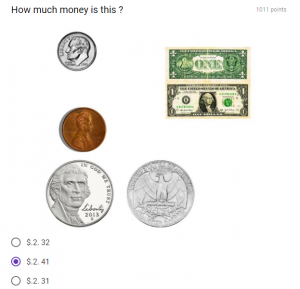
Second graders at Holladay Elementary have been learning how to count and compare a collection of pennies, nickels, dimes, and quarters whose total value is
$2.00 or less and correctly use the cent symbol, dollar symbol, and decimal point (SOL2.10). Today they created their own money quizzes using Google Drawings and Google Forms. First we had to use Google Drawings to create the image of money to use in our quiz. We went to our Google drive and clicked New > More > Google Drawings. Then we clicked the Image button and clicked “Search” to find pictures of the bills and coins we needed. I explained that students could make any amount of money up to $2.00, but they had to know how much money it was for their quiz. When the students were finished making their money picture, we clicked File > Download As > JPEG Image. Then we went back to our Google Drive and clicked New > More > Google Forms. They titled their form, “Money Test” and wrote the question, “How much money is this?” Next, they typed in several answer choices, making sure to include the correct one. We also clicked the Add Image button to upload the money drawing that we created. Finally, to turn the form into a quiz, we clicked Settings (the gear icon) > Quizzes and changed it to a quiz (you may want to change some of the other settings as well). We marked the correct answer choice, clicked “Send,” copied the link, and pasted it to Google classroom so everyone could take our quizzes. You can see them all here. (NOTE: I taught a similar lesson with Mr. Williams’ 5th graders at Varina Elementary where we created quizzes for finding perimeter, area, and volume here)


5th Grade Circles On The Earth

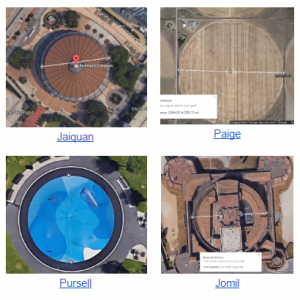
Fifth graders at Laburnum Elementary are learning about circles and their measurements: circumference, diameter, radius, and chord (SOL5.9). Today students in Ms. Henry’s class learned how to show those measurements with Google Drawings and Google Earth. First I gave them each a copy of a blank Google slideshow in Google classroom. We created a title page on the first slide, and on the second slide I showed them how to use the shapes tool to make 4 circles (hold Shift while clicking and dragging the circle to make it perfectly round). We used the paint bucket tool to change the fill color of the circles, and they discovered another new feature that I didn’t know about (I already mentioned in this post, how students found the gradient feature). If you click Custom at the bottom of the colors panel, you can adjust the fill colors’ transparency! Next, I showed them how to use the Line tool to draw a radius, diameter, and chord on different circles. We changed the color of the lines and their thicknesses using the buttons in the toolbar. Then we labeled each measurement with a text box. For the last slide I wanted them to find a real life circle in Google Earth and measure its radius, diameter or a chord. So we went to Google Maps, clicked the Google Earth button in the bottom left corner, and searched for circles. TIPS: Look near rivers for water treatment plants, look out west for crop circles (the panhandle of Texas especially), look on the roofs of buildings for fans, look in backyards for pools and trampolines. To make a measurement, right click where you want the line to start, choose “Measure distance,” then double-click where you want the line to end. Finally, students took a screenshot of their real life circle (using the Snipping Tool) and pasted it to their slideshow with a text box explaining the measurement. You can see all their slideshows here.


3rd Grade Explorers Spreadsheet & Map

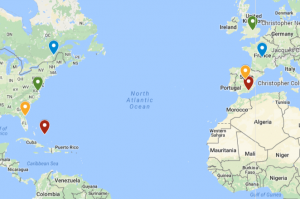
Third graders at Laburnum Elementary have been learning about the first European explorers in the New World (SOL3.5c,d). Today students in Ms. Burgess’ class learned how to enter data about the explorers into a spreadsheet and upload it into a Google map. I gave each student a copy of an “Explorers Spreadsheet” (you can make a copy of the spreadsheet here). The explorers’ names are already on the spreadsheet, but students had to do research to enter the remaining information – sponsor country, final destination, and length of trip. For the length of the trip, we first tried finding the mileage of the trip, but realized it was easier to find the length of the trip in days. We were surprised by what we discovered in our research because the lengths of the various trips were very different from our initial predictions. After we entered the data, we highlighted it all and clicked the graph button to make a bar graph. Next we went to “My Google Maps” and clicked the “Add Layer” button. We imported our spreadsheet from Google Drive and checked off “Sponsor” for the placemarks and “Explorer” for the label. Then Google maps automatically created the placemarks in the correct spots. To create an additional set of placemarks for the destinations, we repeated the steps above, but checked off “Landed” for the placemarks. Finally, students could customize the placemarkers by changing the colors and adding photos. You can see a sample spreadsheet here (they were all pretty much the same) and a sample map here.


5th Grade Shapes with Google Drawings

Fifth graders at Varina Elementary have been learning about 2-D shapes: parts of a circle (SOL5.9), angles and triangles (SOL5.12), and plane figures (SOL5.13). Today, students in Ms. Shiew’s class used Google Drawing to illustrate a variety of these shapes. First we went to their Google drive and clicked New > More > Google Drawings. I showed them how to use the Shapes tool to create a shape then use the paint bucket to change the fill color. The students actually found a new feature I hadn’t seen before–you can now have a gradient fill! I also showed them how to use the line tool to create congruent markers on equal sides of the shapes or to add chord, diameter, or radius lines to the circle. They used the editing tools to change the color, thickness, and endpoints of the lines (and shape outlines). To label the endpoints, students used the text box tool and typed letters. Finally, we clicked File > Download As > PNG Image. I explained that one difference between PNG and JPG images is that the PNG image will have a transparent background. We shared our images on Google classroom with questions for our classmates to answer, like “What is the line AB on the circle?” or “What type of triangle is in my picture?” You can see all their shapes here.


4th Grade Animal Research Websites

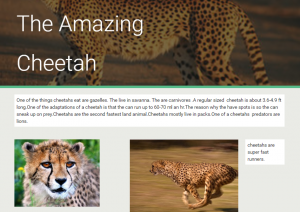
Fourth graders at Holladay Elementary have been learning about animal ecosystems in Science (SOL4.5) and measuring length in Math (SOL4.6). Today students in Ms. Rivara’s class researched an animal and created a website about it. First the students chose their animals (we made sure that there weren’t too many duplicates by brainstorming a variety). Next, I gave them some guidelines for their research: they had to find out the animal’s (1) habitat, (2) predators, (3) prey or diet, (4) length, and (5) an interesting fact. I showed them how to do quick Google searches to find the information they needed, such as “animal name + predators,” for example. There are also several great sites for researching animals: National Geographic Kids, Go Wild by WWF, A-Z Animals, and Arkive (more advanced reading, but lots of photos and videos). To create the websites we used the new Google sites. Students went to their Google drive and selected “New > More > Google Sites.” They added a title and found a suitable background header image. Then they added a text box and typed the facts they found in their own words (we reviewed the problems with plagiarism). For images, the students used the built-in Google image search to find copyright-free pictures of their animals. I showed them how to add a caption by double clicking next to a picture and choosing the text box option from the pop-up menu. Some students even added videos after class. Finally we published the websites and pasted the links to Google classroom. You can see them all here.